
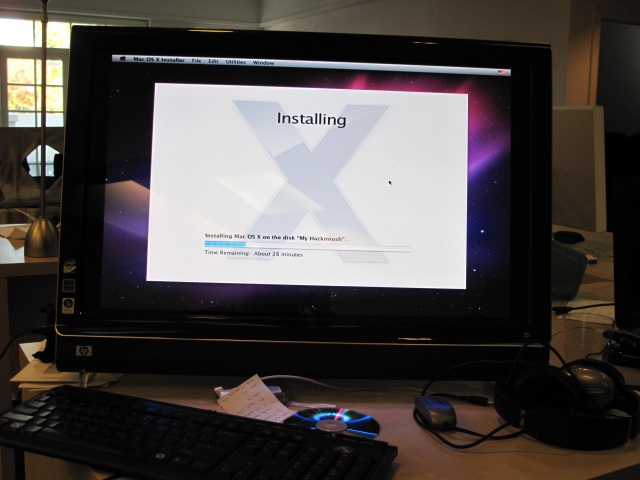
It’s been a few hours since the Internet exploded over the Psystar Rebel_EFI bootloader and we tried it out on a few machines in the office and originally thought it failed. However, I let the boot screen run for a bit without touching the keyboard on an HP TouchSmart we had here and it suddenly dropped into the OS X install screen. A quick format using Disk Utility and I was, amazingly, in business. The touchscreen even worked!
UPDATE – Video after the jump.
The video is arguably pretty boring but it’s essentially proof of life.
First, download the software. MIRROR Burn the ISO to a CD ROM, boot it in the CD ROM drive, and select verbose in the set-up so you can watch it run. Just let it churn away and assume that it’s crashed if it takes longer than an hour to enter into the OS X install screen. We’ll report back on how our new Hackintosh(ii) run as we try this trick on multiple machines.
Here are the instructions again:
1. Download the Rebel EFI file, available here.
2. Burn the file to a CD.
3. Insert the Rebel EFI disc into your CD drive.
4. Start or restart your computer.
5. As computer boots up select, Boot Options or Boot Menu Key
**Boot Options or Boot Menu Key differ by motherboard manufacturer.
6. Select CD ROM
7. After CD loads press enter to run the CD
8. When prompted, Eject the CD and it will ask for the Snow Leopard DVD
9. Insert the Snow Leopard DVD
10. Select Main Language
11. Click Continue, if you want to continue with the installation of Snow Leopard.
12. Click Agree, if you agree.
13. Select the disk that you want to install Snow Leopard on.
a. If no disk shows, Click on Utilities on the tool bar, then select Disk Utilities.
b. On the left you should see your hard drive.
c. If not, a disk is not connected or cannot be read by your computer.
d. After selecting your hard drive click on Partition.
e. Under Volume Scheme, click current and select 1 partition.
f. Under Volume Information, name your hard drive.
g. Format: Mac OS Extended (Journaled)
h. At the bottom of the window Click on the Options Button.
i. Select the GUID Partition Table
j. Click OK
k. Click Apply
l. Click Partition
m. Quit Disk Utilities
14. Select the disk that you want to install Snow Leopard on.
15. Click Install.
16. When Installation completes. restart the computer
17. As the computer starts up, insert the Rebel EFI CD
18. As computer boots up select Boot Options or Boot Menu Key
**Boot Options or Boot Menu Key differ by motherboard manufacturer.
19. Select CD ROM
20. Once CD loads you will see both the Hard Disk and the Rebel EFI CD
21. Use the arrow keys to highlight the Hard Drive
22. Press Enter to boot Hard drive.
23. Launch the Rebel EFI application from the CD.
24. Follow the on-screen authentication procedure.
25. Click Continue
26. Select your Keyboard
27. Click Continue
28. Select, Do not transfer my information now.
29. Click Continue
30. If, you have and Apple ID enter it now
31. If not, Click Continue
32. Enter your Registration Information
33. Click Continue
34. Create your Account Information
35. Click Continue
36. Select Time Zone
37. Click Continue
38. Click Done






















Comment