ModMyi forum members The inimitable Erica Sadun has found a way to update the 3.0 Beta firmware to enable tethering. Ivan is trying it right now, but here are the steps:
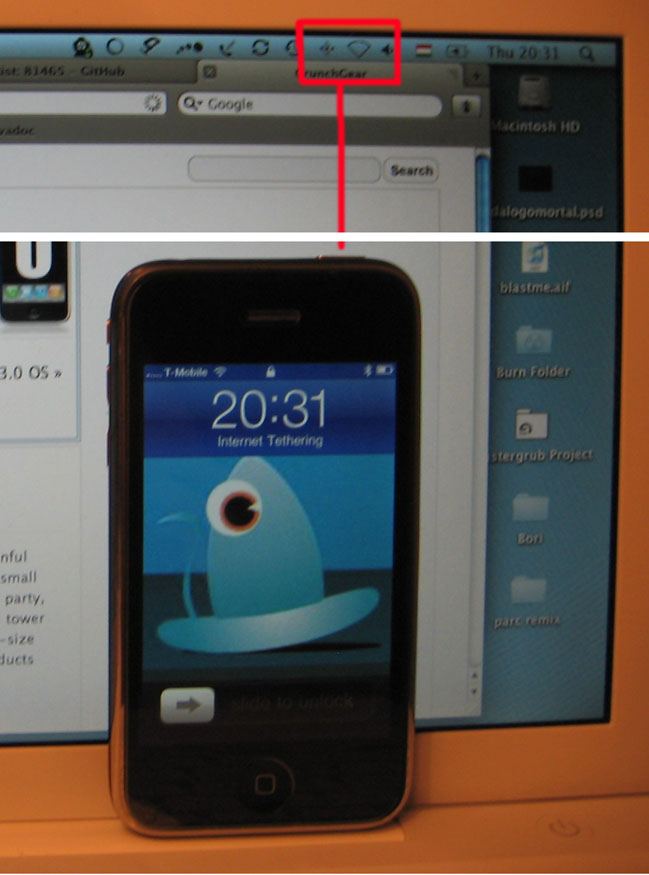
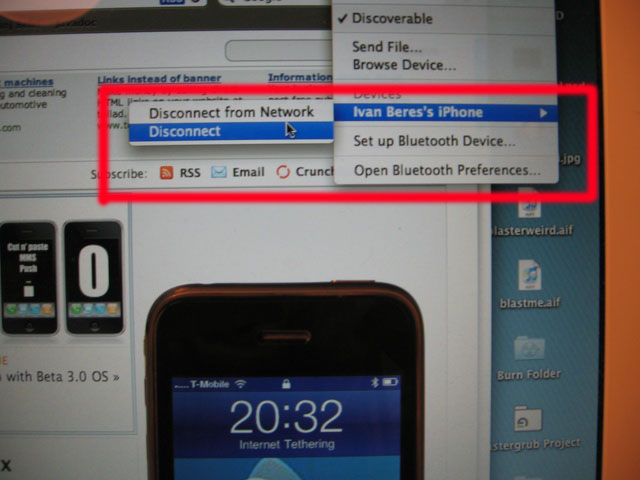
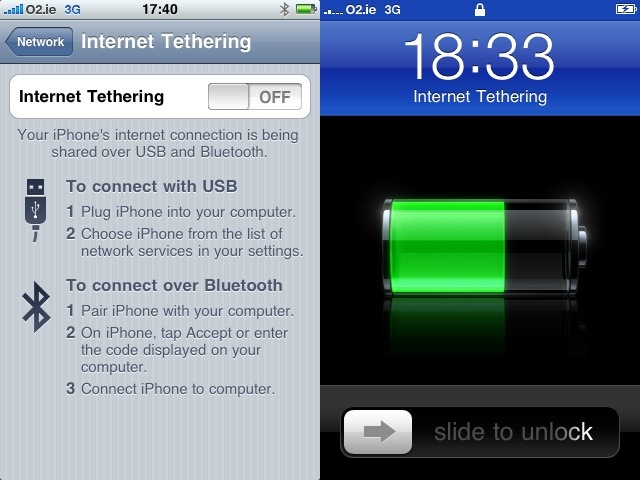
UPDATE – We got it working and there is a walk-through coming soon. Screenshots appear below.
Step 1: Check if you own a 3G iPhone. If you’re on EDGE (as I am): sorry. Tethering does not seem to work with EDGE phones.
Step 2: Check to see if AT&T is your carrier. If it is: sorry. AT&T will not let you tether.
Step 3: Navigate to ~/Library/iTunes/iPhone Carrier Support. Notice the spaces in that last folder name! If you’re at the command line, use backslashes to escape the spaces, i.e. cd ~/Library/iTunes/iPhone Carrier Support. You will find a file with an ipcc extension. Copy that file: e.g. cp foo.ipcc foo.ipcc.original. This creates a backup for when you mess up.
Step 4: rename the ipcc extension to zip. For me that was ATT_US.ipcc renamed to ATT_US.zip. (Did I mention how I’m on a 1st Gen iPhone with AT&T?). Unzip it. This creates a new folder called Payload.
Step 5: Navigate into Payload and then into the folder under that. Mine was called ATT_US.bundle. Yours will differ. Inside that folder you will find three files that you will edit: Info.plist, version.plist, and carrier.plist. Open all three in the Property List Editor that comes with the dev tools on a Mac.
Step 6: In Info.plist, change the CFBundleVersion to 5.0. Save.
Step 7: In the version.plist, change the CFBundleVersion to 5.0. Save.
Step 8: In carrier.plist do the following and then save:
(a) Add a new dictionary to the apns array:
apn = internet
password = password
username = iphone
(b) In the wap dictionary (mine is wap.cingular, sts’s was wap.dol.ie), add a new pair. Do not edit the password or username:
type-mask = (NUMBER) -2
(c) Add a new pair at the top level dictionary of the carrier.plist file. (We’re not sure this is strictly speaking necessary but go ahead and do it.):
AllowEDGEEditing = (BOOLEAN) YESStep 9: Zip up the Payload folder in which you just made your edits. Rename it to the same name as the original ipcc file. (For me that was ATT_US.ipcc).
Step 10: Connect your iPhone to iTunes.
Step 11: In the Summary tab, option-click “Check for Update”. Navigate to your ipcc file, select it. It takes no more than a second or two to update.
Step 12: Reboot your iPhone.
Step 13: In prefs (on the phone) navigate to Settings > General > Network.
Step 14: Let me know how this worked for you.
HOW TO FIND A CARRIER IPCC FILE:
curl -s -L http://phobos.apple.com/version | grep -i carrier